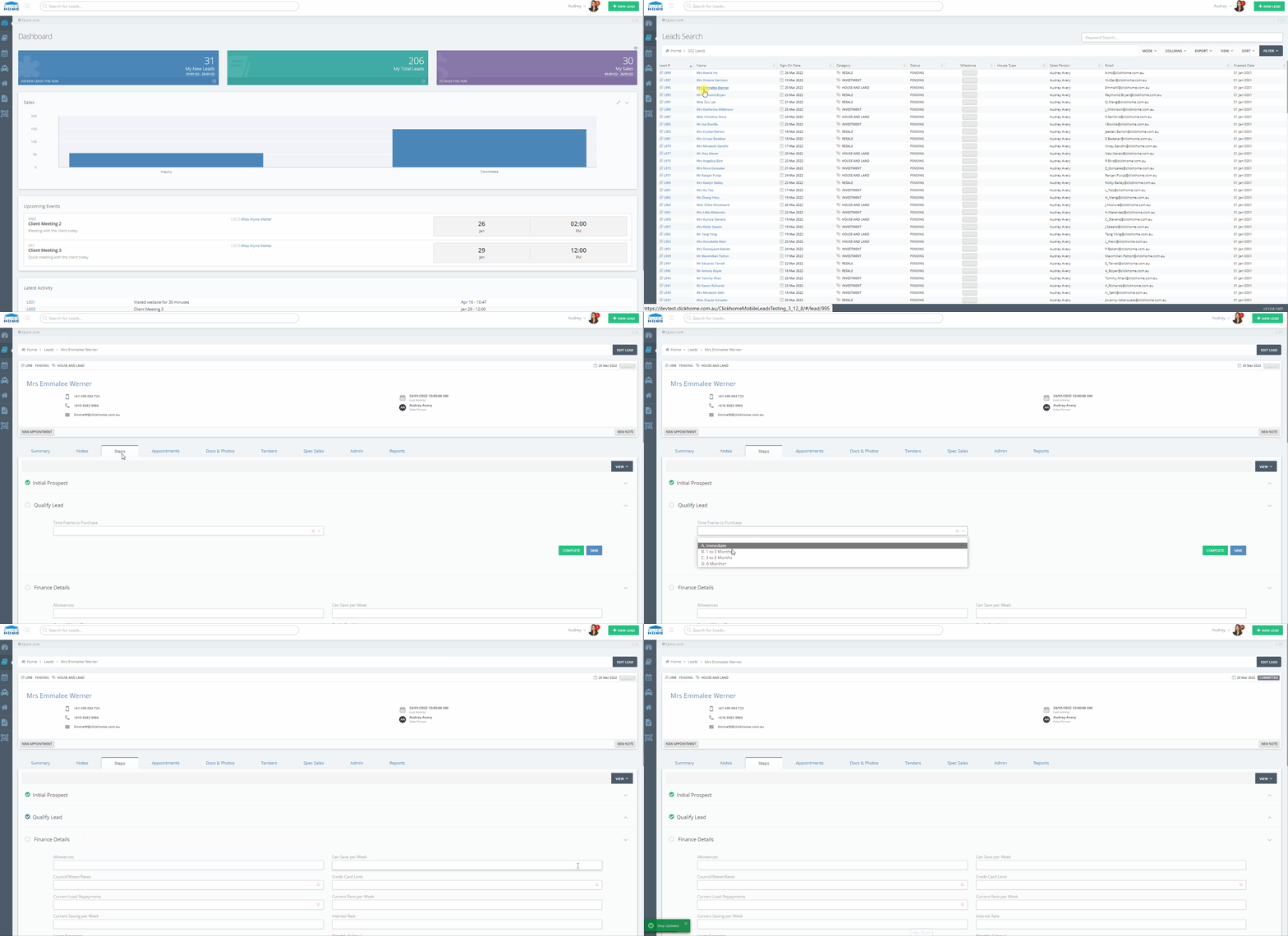
You can progress a Lead through the Steps Tab.
Instructions to Progress a Lead by Completing Steps
Step 1: Navigate to the Steps Tab
- Access the Lead to be progressed, from the search Leads Page.
- Click on the 'Steps' Tab
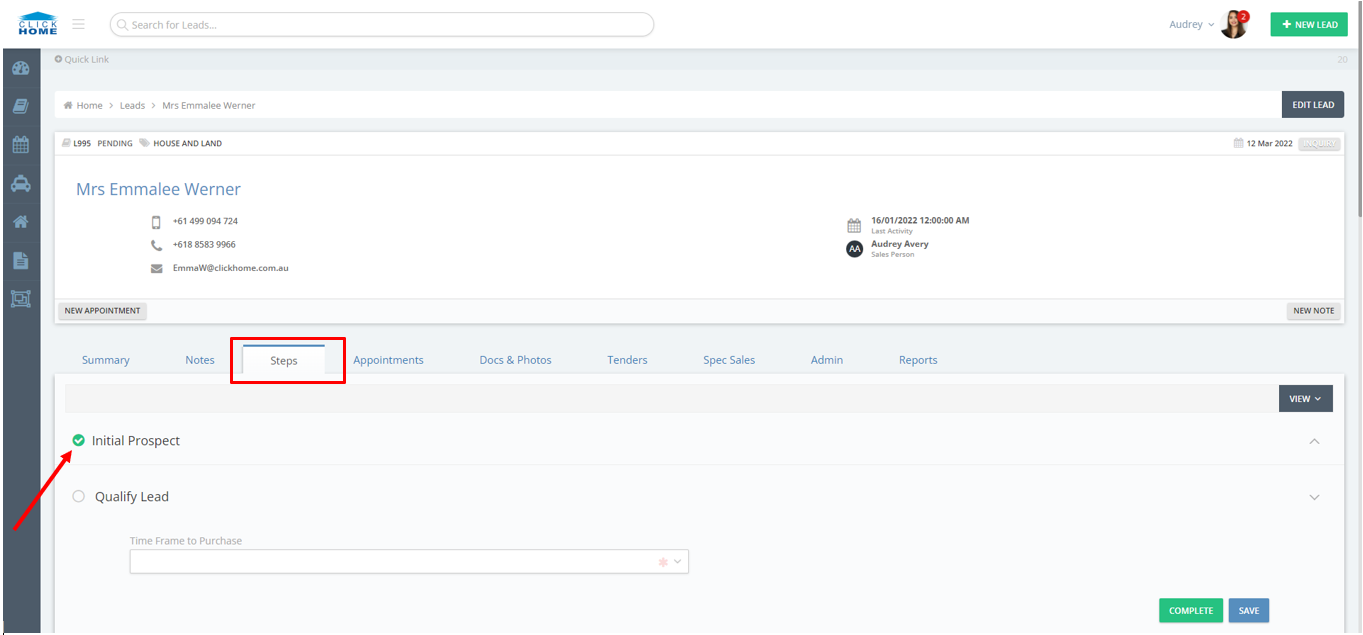
- If there is a green tick visible on any of the steps, as shown in image below for 'Initial Prospect', this is an indication that the step has already been completed.
NB: All categories are fully customisable and can consist of a variety of flex fields.
See:
- The 'View' dropdown consists of a 'Show Process Steps' tick box. Once this tick box is selected, all the tasks which require others to complete will be displayed.
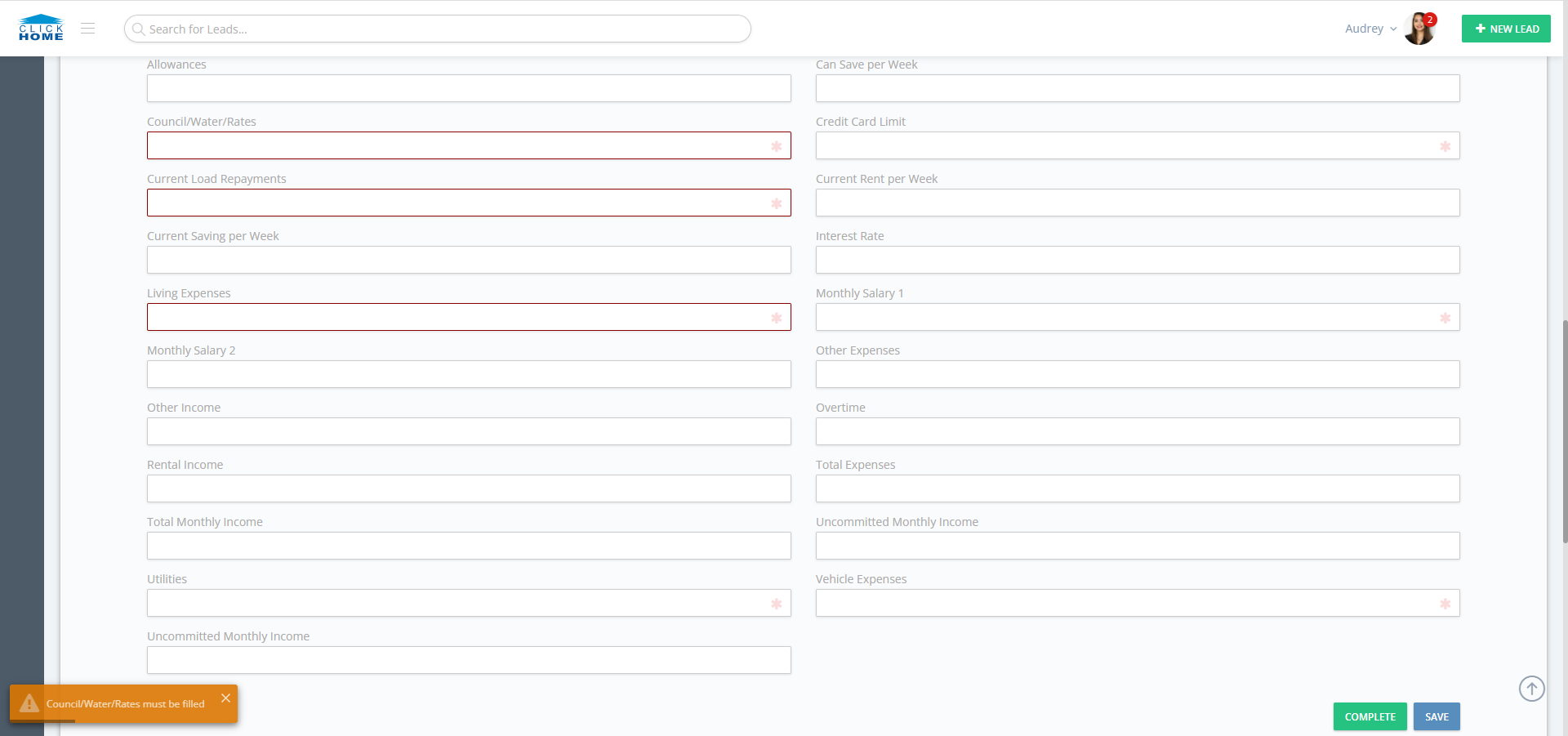
NB: A Lead cannot be progressed until all mandatory fields (marked with *) have been completed by all the relevant people.
If there is a mandatory flex field which is not completed, a notification will appear on the screen as a reminder that all mandatory fields must be completed to progress the Lead (See image below).
Step 2: Complete vs. Save Steps
- If the 'Complete' button is clicked, this step will be marked as completed.
- If the 'Save' button is clicked, all information in the step will be saved, however the Step will not be marked as completed.

-------------------------------------------------------------------------------------------------------------------------