
Reminders are essential in ensuring you are made aware of important dates and upcoming meetings.
Instructions to Add & View Reminders
Adding a Reminder
- Access a Lead
- Navigate to the Notes Tab
- Select the Add Reminder button.
The Add Reminder button is located under the Note Title, at the bottom right. Click the 'Add Reminder' button to add a reminder to the Note.
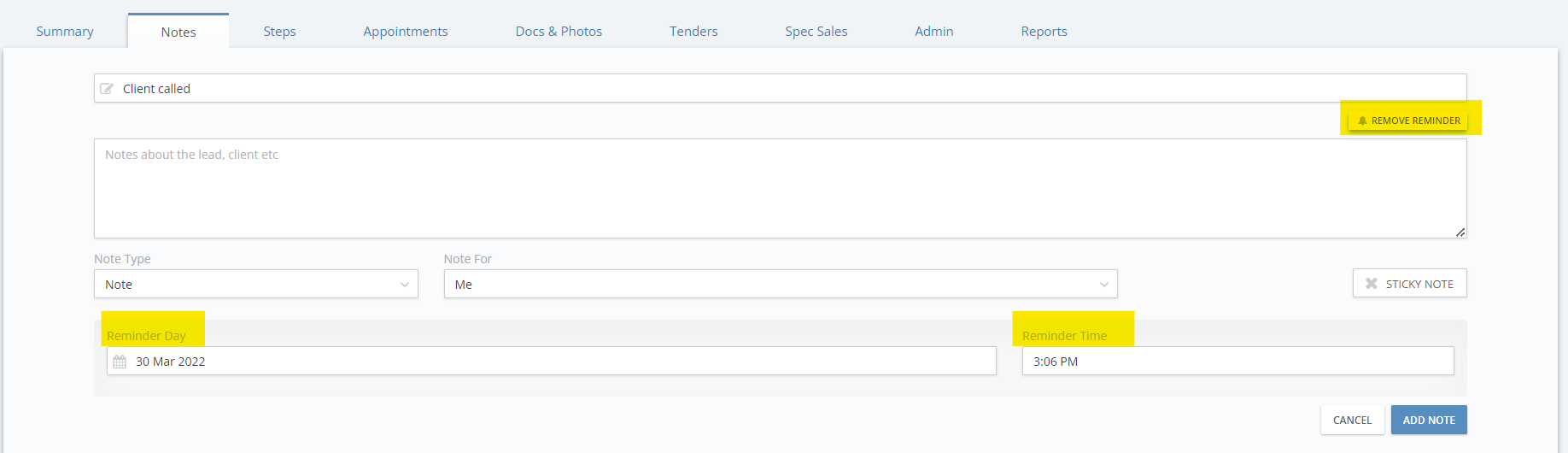
Once the 'Add Reminder' button has been clicked, the button changes to 'Remove Reminder' and an additional 2 reminder fields appear at the bottom of the Add Note section of the Notes tab. You must complete the ; Reminder Day & Reminder Time to set a reminder on the Note.
Viewing a Reminder
All Reminders appear as a notification on the user profile icon as a small red circle which moves to let you know there are new reminders.

You can click on the profile image to view all their reminders.
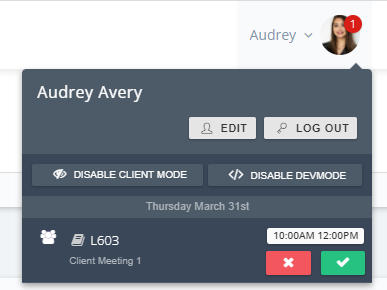
Reminders are displayed with the Lead contract number and the Title of the reminder.
If you click on the a reminder, you will be navigated to the Appointments Tab for that specific Lead.
The Date of the appointment is displayed at the top of the reminder and the time of the appointment is displayed to the right of the reminder.
 You can click on the red button to delete the reminder.

You can click on the green button to complete the reminder.