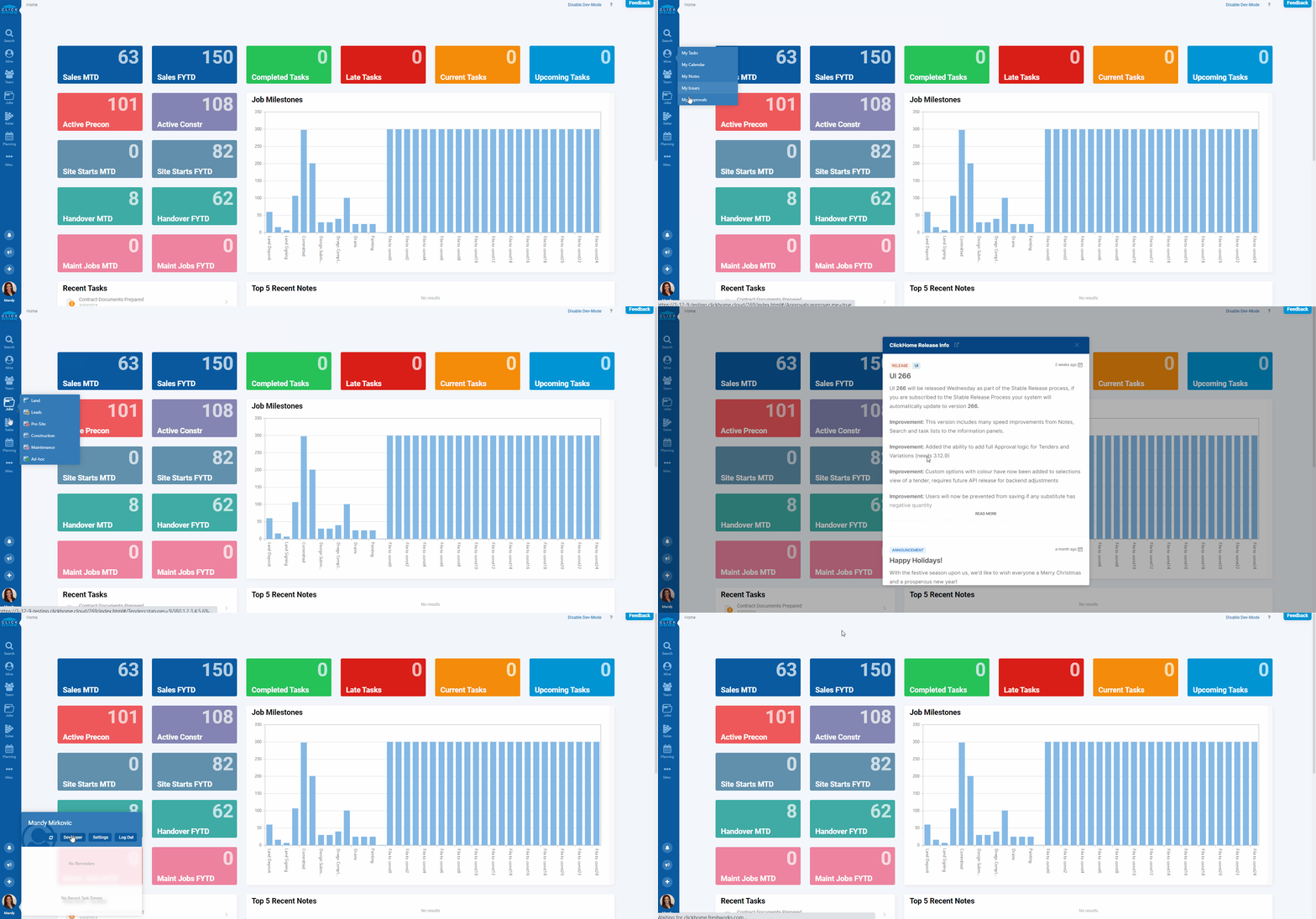
The User Interface for ClickHome has been designed with help and feedback collected from Clients and users over the last few decades. And in such has been made to be intuitive and quick to navigate.
ClickHome User Interface Home Screen
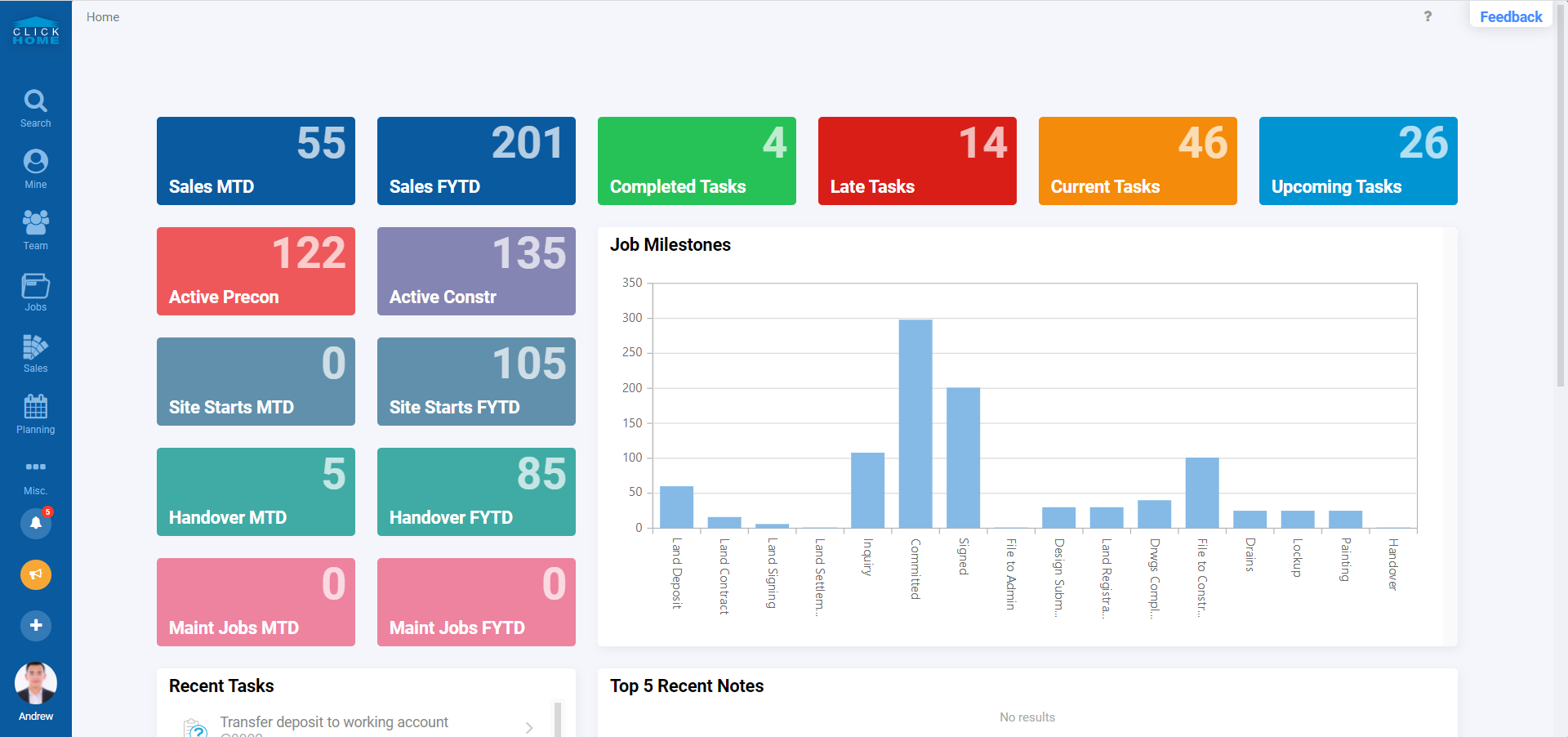
Once you are logged in to ClickHome the following screen will be displayed:
Overview of Dashboard
The User Interface Dashboard is designed to make important components accessible to you. The first dashboard is identical for every user and is designed to provide an example of what the future holds. It prompts users and customers to think about what their preferences may be regarding future dashboards.
You have access to the following components:
- The start screen is a Dashboard. These will become a consistent feature through the application, and provide a quick way to customise your own experience to meet your requirements and focus your goals.
- The Navigation Bar to the left of the screen is for top level navigation. It is similar and consistent with the Windows start button, opening the main navigation on the right side. It has a similar look and feel to other commercial web based applications.
| Icon Image | Icon Name | Description |
|---|---|---|
 | The 'ClickHome Logo' | The 'ClickHome Logo' is located at the top left corner. If this icon is clicked at any point, the user will be navigated back to the Dashboard. (A Home Button) |
 | The 'Search' Icon | The 'Search' icon has a hover over functionality which provides a display of additional choices to search on Contracts, Tasks and more. If clicked once, a quick search box will appear. See: Info: Search in ClickHome / How To: Quick Search in ClickHome |
 | The 'Mine' Icon | The 'Mine' icon consists of a list of predefined searches |
 | The 'Team' Icon | The 'Team' icon consists of a list of predefined searches |
 | The 'Jobs' Icon | The 'Jobs' icon consists of contract icons for: Land, Leads, Preconstruction, Construction, Maintenance and AdHoc, which each run a predefined search based on configurable settings. |
 | The 'Sales' Icon | The 'Sales' icon displays tenders Intro: The Tenders Module |
 | The 'Planning' Icon | The 'Planning' icon contains the job overview screen and the room booker Info: Search & View Room Booker |
 | The 'Misc.' Icon | The 'Misc.' icon contains the Admin section of ClickHome and currently contains all the reports the user has permission to run |
 | The 'Bell' Icon | The 'Bell' icon shows the latest ClickHome Release notes |
 | The 'Survey' Icon | The 'Survey' Icon opens a survey to ask about the your experience and satisfaction. This only appears after you have used it for a while. When you see it, please use it to give us general feedback on your experience and what other features are important to you. This feedback goes to our entire team to help us plan future improvements. |
 | The 'Global Add' Button | The 'Global Add' button is used to add new jobs, notes and other records quickly. |
 | The 'Profile' Icon | The 'Profile' icon can be used to access user settings, logout and view reminders. |
- Breadcrumbs and context based navigation is displayed across the top of the screen. This will show the user what job, task, customers or other screen you are in and provide options to drill down into other areas.
- The Help shortcut is displayed on the top right of the screen. Clicking on the familiar question mark will bring you back to this user manual and often back to the help section for the very screen you are on.
- Users are encouraged to use the ClickHome Feedback button located at the top right of the screen to:
- Provide any suggestions regrading improvements to the ClickHome application
- Make any direct queries or concerns regarding existing functionality
- Provide feedback on your experience in using the ClickHome application
All information provided in the feedback pop up will go directly to our support team with your email address so we can promptly respond to the content in your message or address any issues you might be having.
The Middle section of the Dashboard
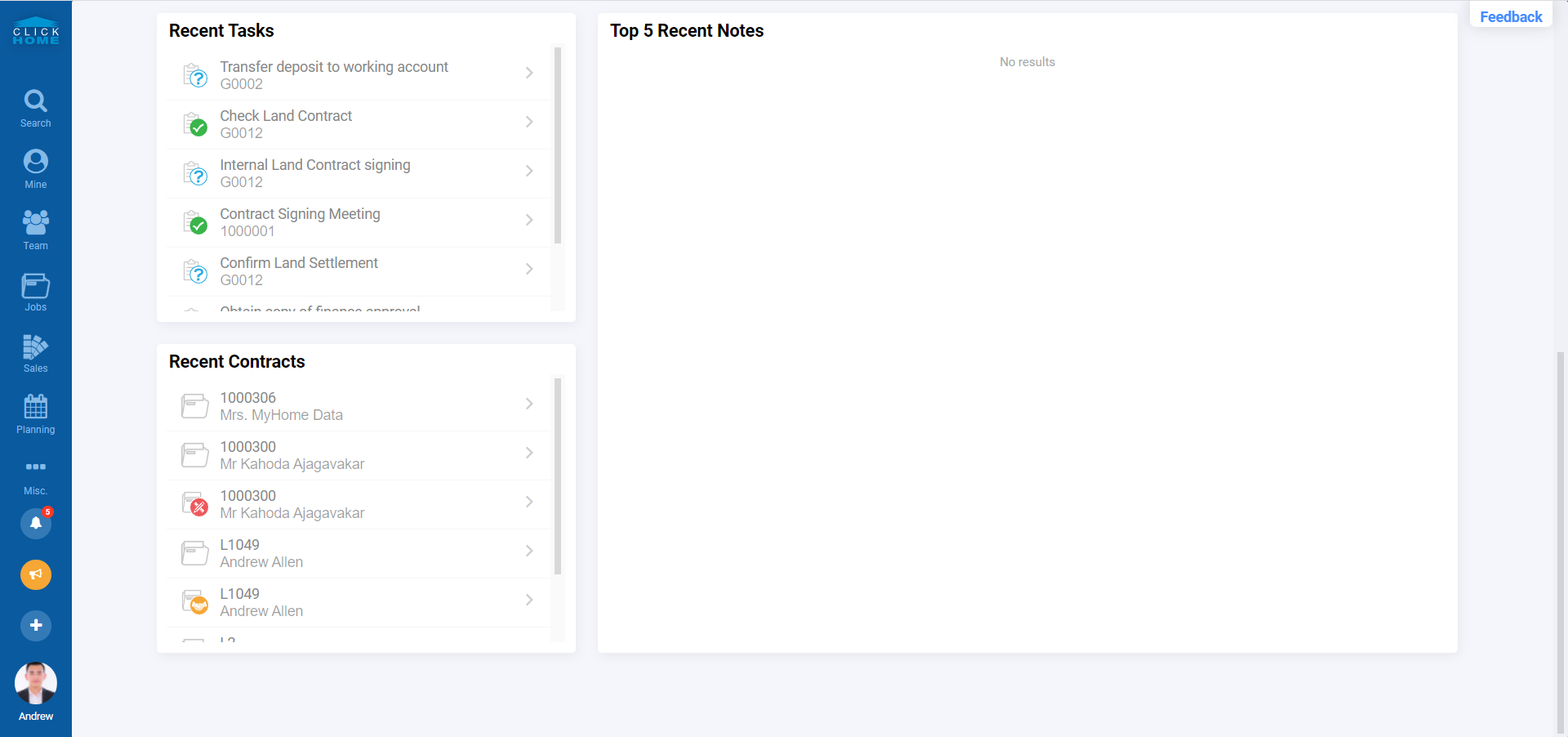
- On the Dashboard there are two types of generic tiles: Small tiles with values with a bar graph included and two specific feature tiles which outline 'Recent Tasks' and the 'Top 5 Recent Notes'.
- By clicking on the small tiles with numbers, a search operation is automatically performed which matches the same criteria mentioned on the tile selected.
- The 10 panels on the left side are based on criteria across business units that the user can access and the 4 above the Job Milestones are related to the current user.
Late Tasks - based on a calculation of start date plus duration, if earlier than today
Current Tasks - tasks that have an estimated start date of today or earlier
Upcoming Tasks - tasks that have an estimated start date in the next week
See the video below for a quick intro of ClickHome's User Interface.