This only applies to systems that manage passwords in ClickHome. This does not apply to Single Sign On or Active Directory.
The process to change your password in ClickHome involves three basic steps.
Instructions to Change your Password in ClickHome
Step 1: Login to ClickHome
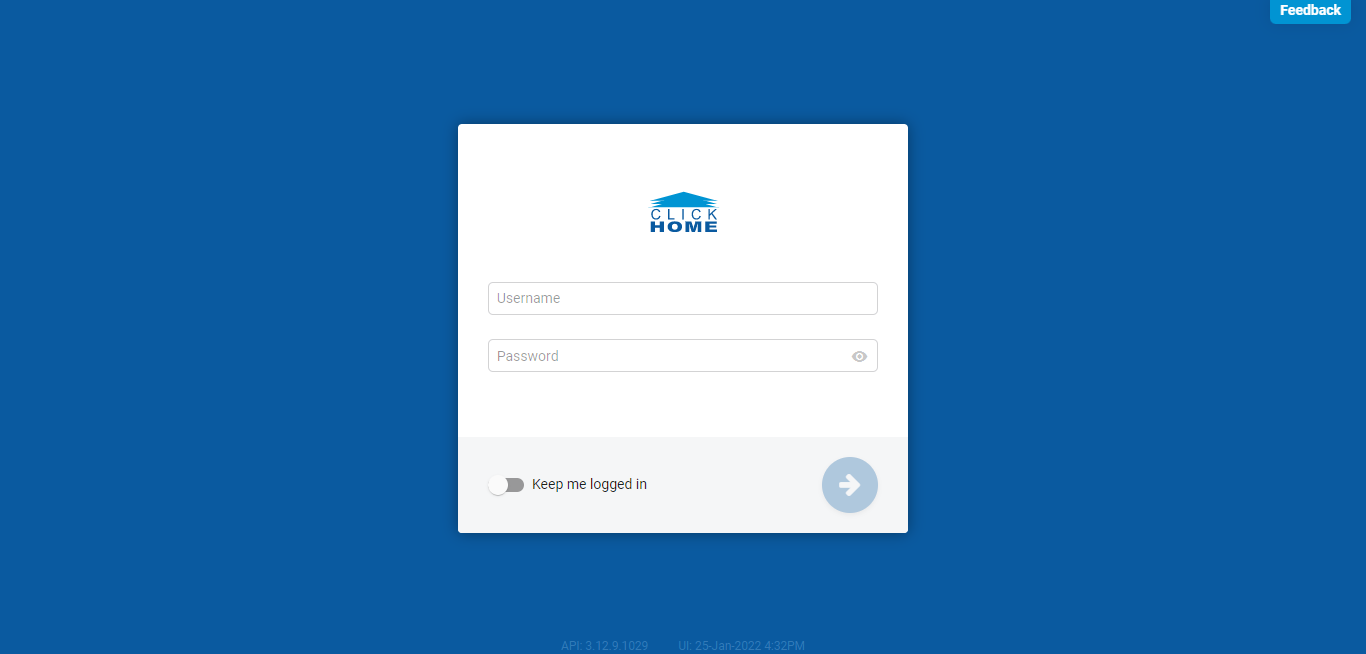
- Access your ClickHome application. You should have been provided with a link. If you are not aware of this address, please speak to the person who looks after ClickHome within your business.
- Login using the username and password provided to you. Please note that you cannot register for a new user or have your password reset from this screen. You will need to contact your system administrator to do this.
Step 2: Locate your user profile
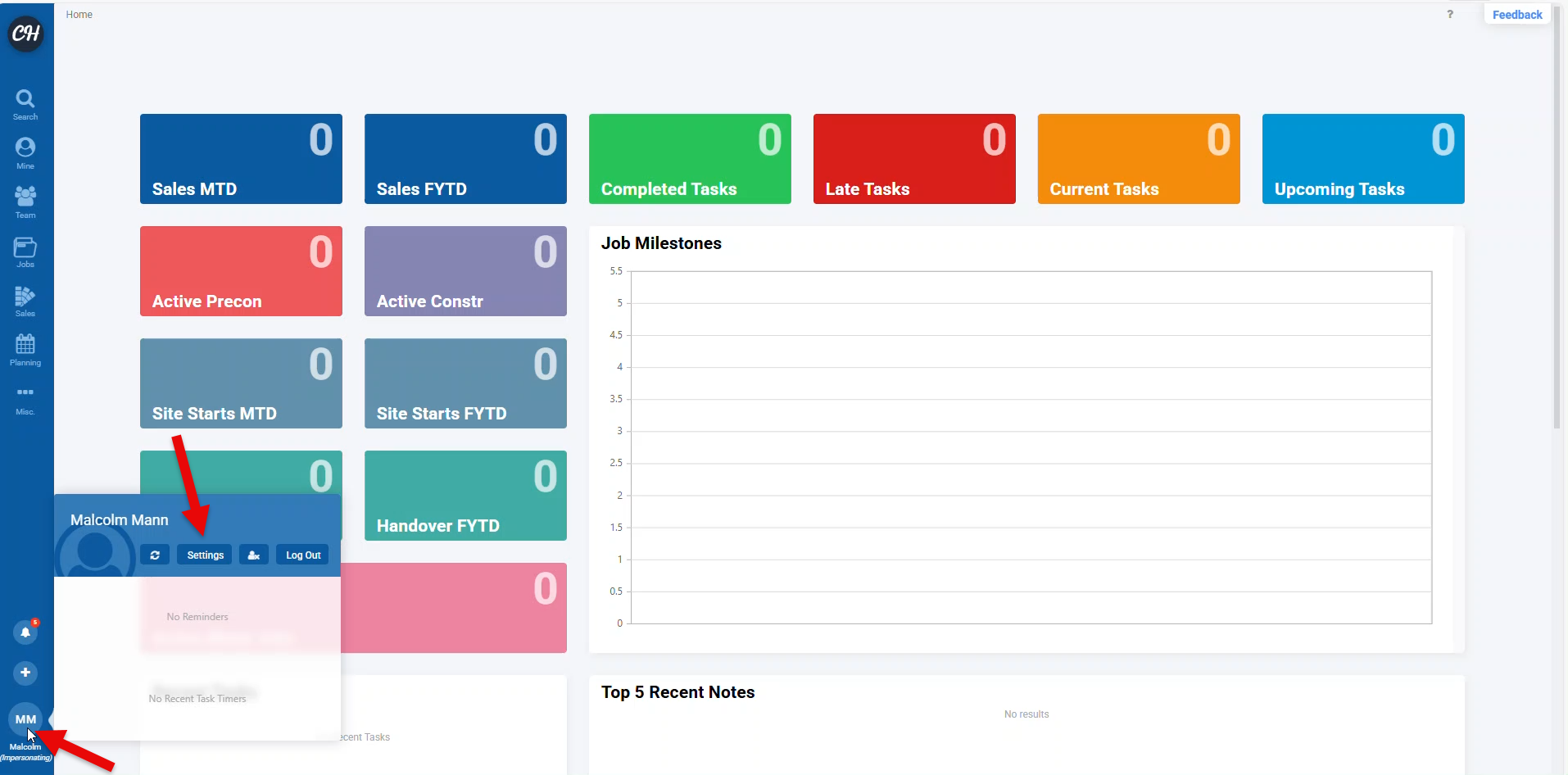
- Find your username on the bottom left hand of the menu. This menu can be accessed from any screen within ClickHome
- Hover over your username and this will bring up a menu
- Click on Settings
Step 3: Change Password
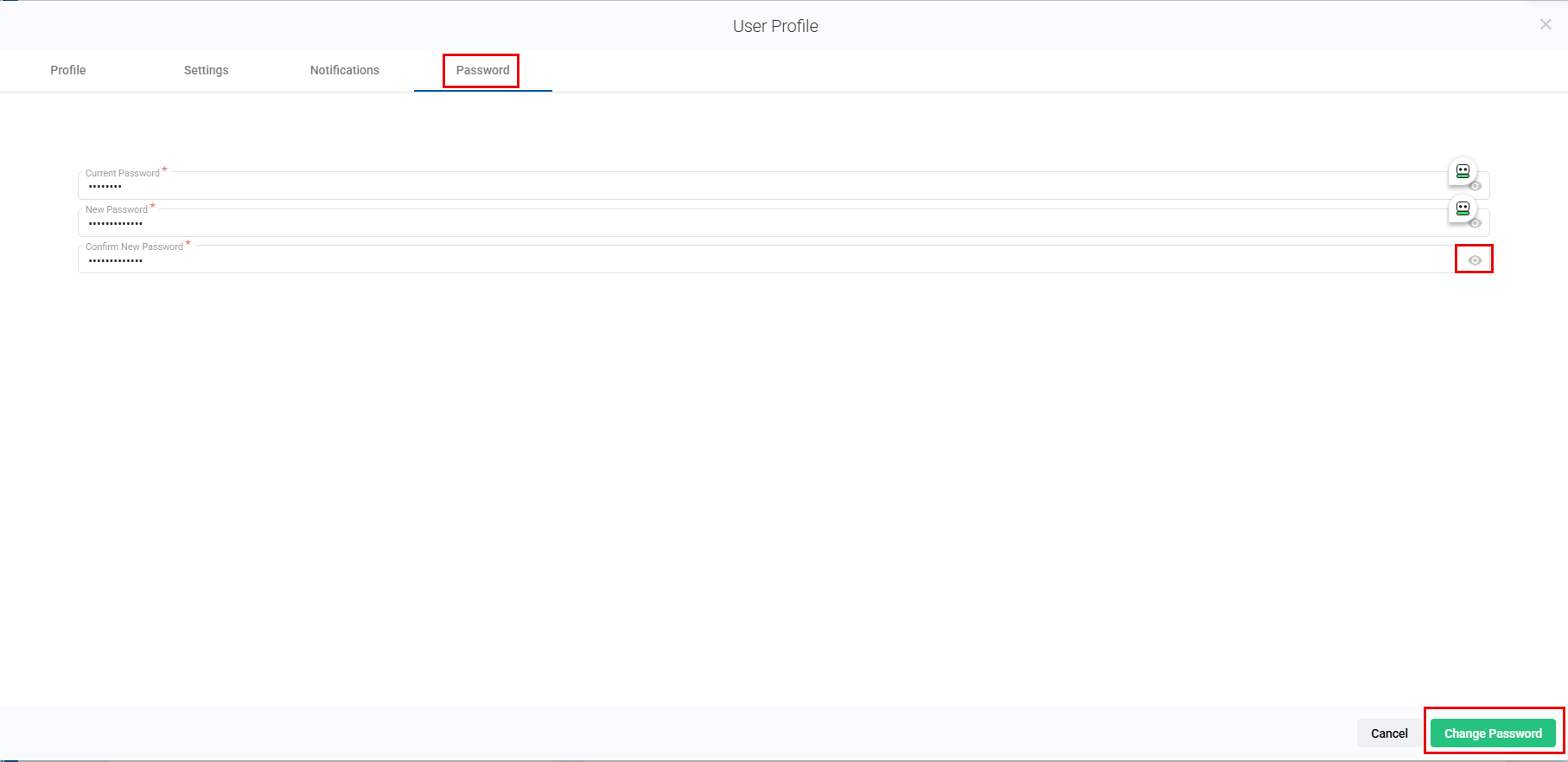
- On this screen, click on the Password tab
- Enter your current password
- Type in a new password. Make this a secure password by not using a commonly known phrase such as ClickHome, password, or 1234. We recommend using a password manager to create a strong password
- Retype your password to confirm your new password
- Click Change Password at the bottom of the pop up
You can check your password by clicking on the eye icon on the right of each password line
We recommend using Single Sign On as a preferred login method. Get in touch with your ClickHome representative to discuss this.