
Viewing and Managing Job Messages
You can view all messages sent for a specific job. From the Messages screen, you can see which messages have been sent, check their status, and resend messages if required.
Accessing the Messages Screen
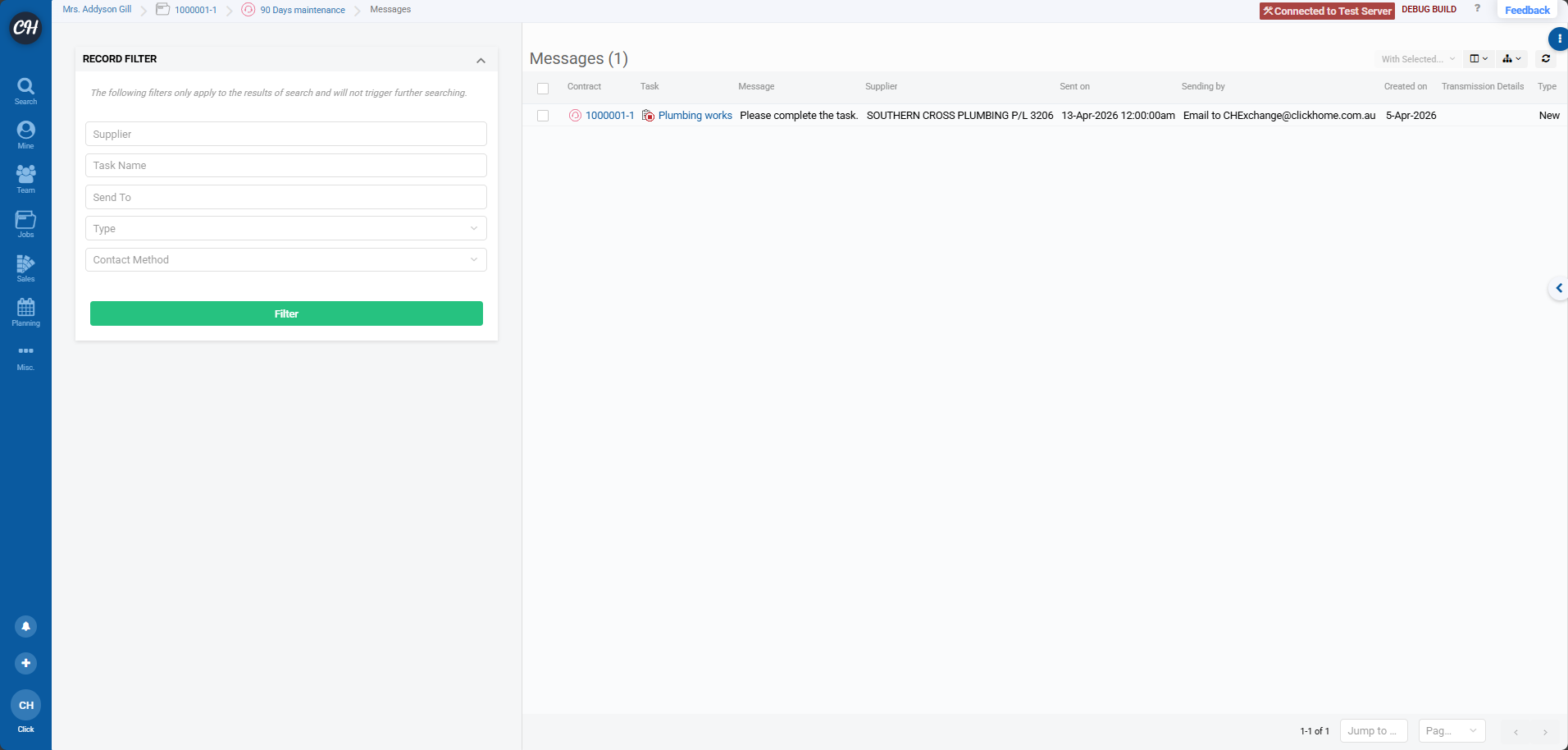
To open the Messages screen for a job:
Open the job you want to review
Click the blue kebab menu
Navigate to 'Field Actions' and then click on 'View Messages'
Viewing Messages
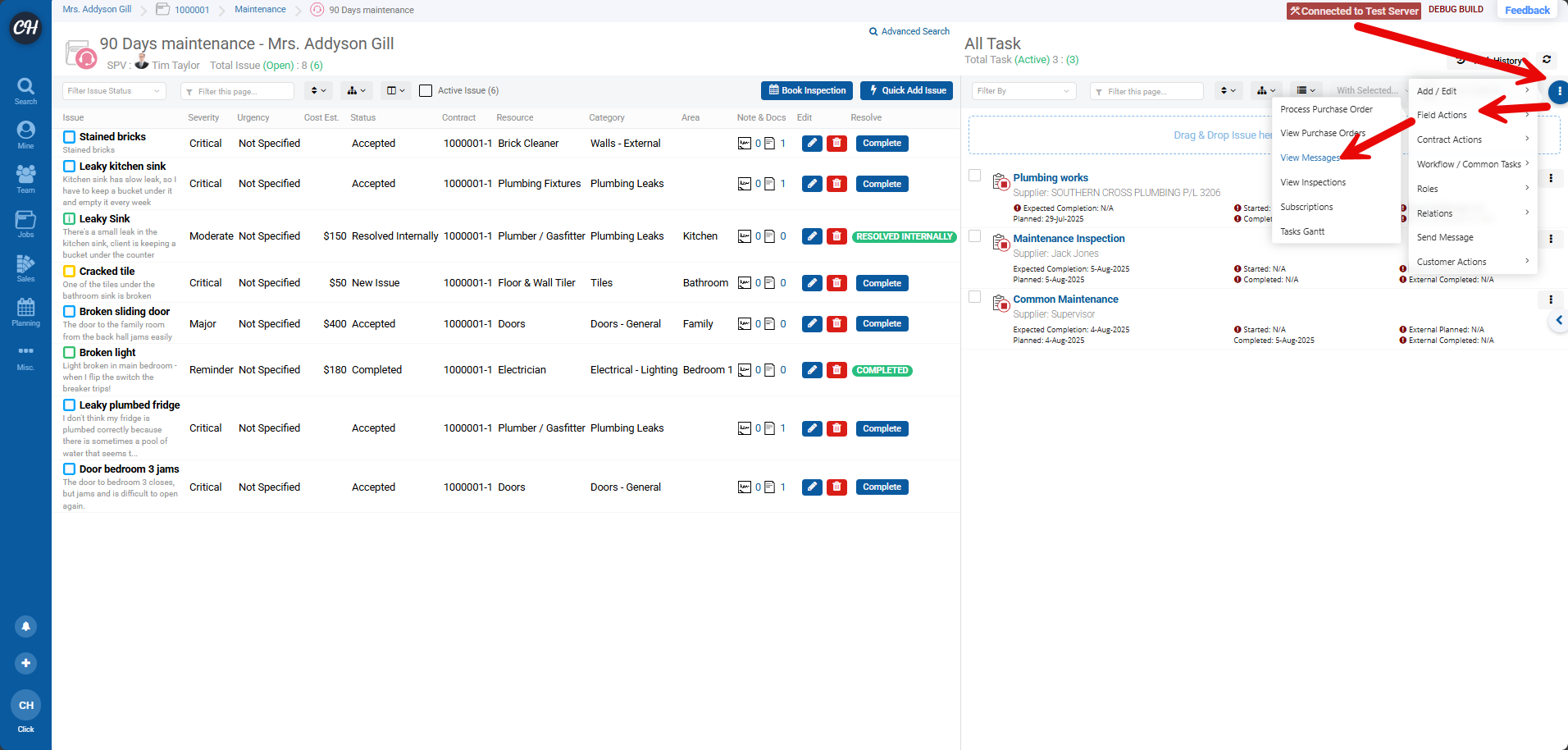
Once you are on the Messages screen, you will see a list of all messages sent for the selected job. This list provides an overview of each message and its current status.
Filtering Messages
You can filter the displayed records to quickly locate specific messages.
Use the available filter options on the screen as required
Apply the filters to narrow down the results based on your criteria by clicking 'Filter'
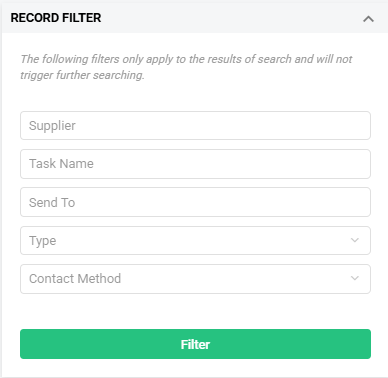
| Supplier | Enter the name of a particular supplier |
| Task Name | Enter the name of a particular task |
| Send To | Enter the recipients details i.e an email |
| Type | Filter via the type of callup i.e cancel, reschedule etc |
| Contact Method | Filter by the contact method used i.e email, phone etc |
Resending or Forwarding Callups
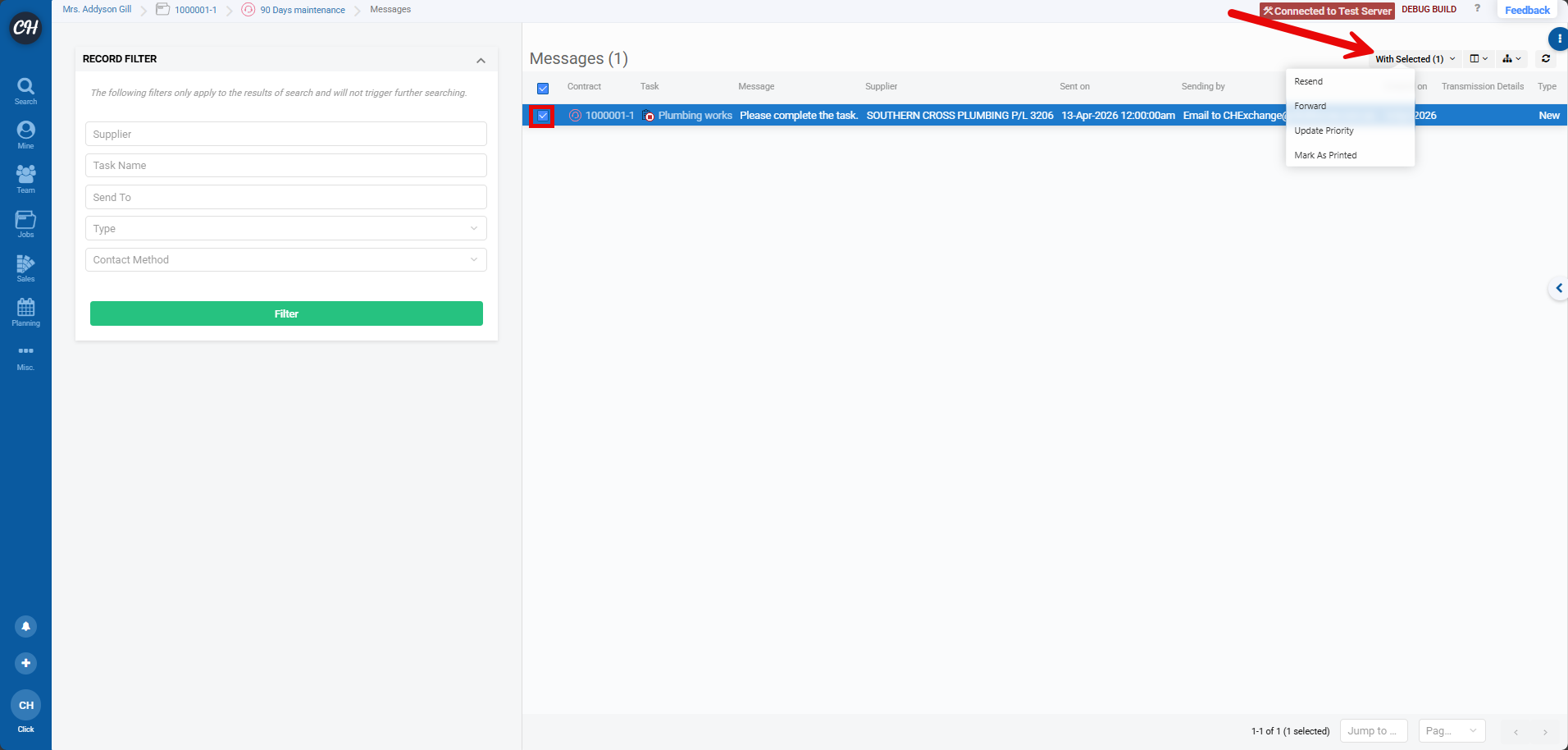
You can resend or forward callup messages if needed.
Select the checkbox next to the callups you want to resend or forward.
Choose the appropriate action (Resend or Forward).
If forwarding, you will be prompted to enter the email the callup should be forwarded to
Viewing Message Details
To view more information about a specific callup:
Click on the callup in the list
The message will open in an expanded window
Review the message details as needed